Using MS Bookings for Parent-Teacher Conferences
Leave a commentJanuary 15, 2024 by Dr. Robbie Barber
This past Fall, we had our 5th semester of using Microsoft Bookings for Parent-Teacher Conferences. Our district added Bookings to our Microsoft Office 365 licenses. It is not easy to set up but it is easy to use. Parents are having no problems scheduling with their teachers and the Bookings puts it right on the teacher’s Outlook calendar.
As the school librarian, I often get tasked to help with school-wide technology programs. In this case, it took a few hours to set up everything.
Main Bookings Page
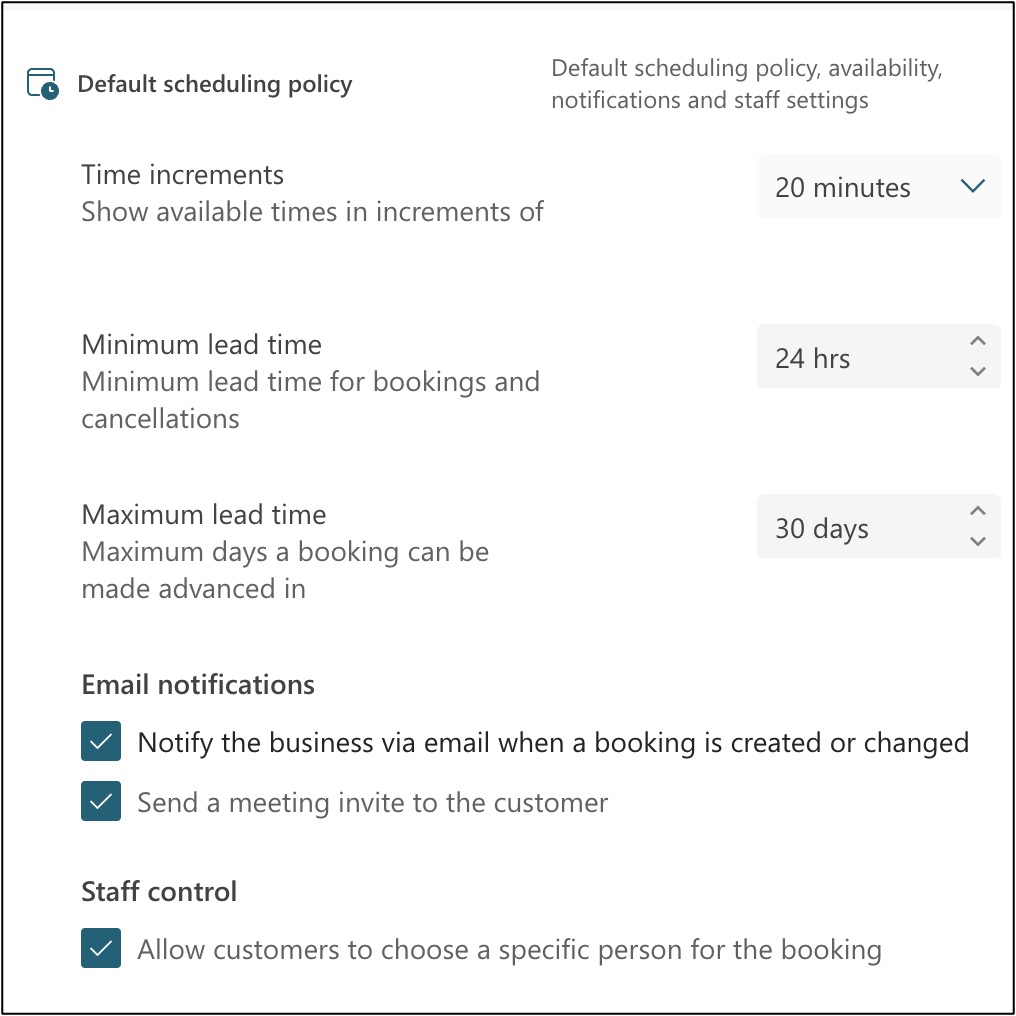
First, create a shared Booking page. I copy (clone) from the last year and set up a new one each school year. That may not be necessary, but it helps me organize. The key to making Bookings work is the setup of the time. The conferences are supposed to be 15 minutes long. Then we need 5 minutes to switch between appointments. This means having 20-minute slots. We set the system to start promptly at 3:30 p.m. and end at 5:30 p.m. on one particular day. We do not want to leave it so that parents can grab any time on a teacher’s calendar. These screenshots show how we set up for a particular day and time.

Services
I am in a high school that has about 125 teachers. The first lesson was that Bookings cannot handle that many staff in one service. So I created a series of services based on departments. Each of the services is set to the same time limitations in the main Bookings page. After a group discussion, we decided that we needed to gather some information from the parent. The parent’s email and phone number are essential. But many of our parents have different last names from the students. Plus, since COVID-19, we have added options of an online Teams meeting or meeting via phone call. Bookings automatically adds a Teams meeting to each of the scheduled conferences. Just ignore the Teams link if it is not needed.

I created one service, made sure it was set up for the calendar, and then copied it to make one for each department. Each department had less than 20 teachers. I put Special Ed. teachers in each of the departments they served.
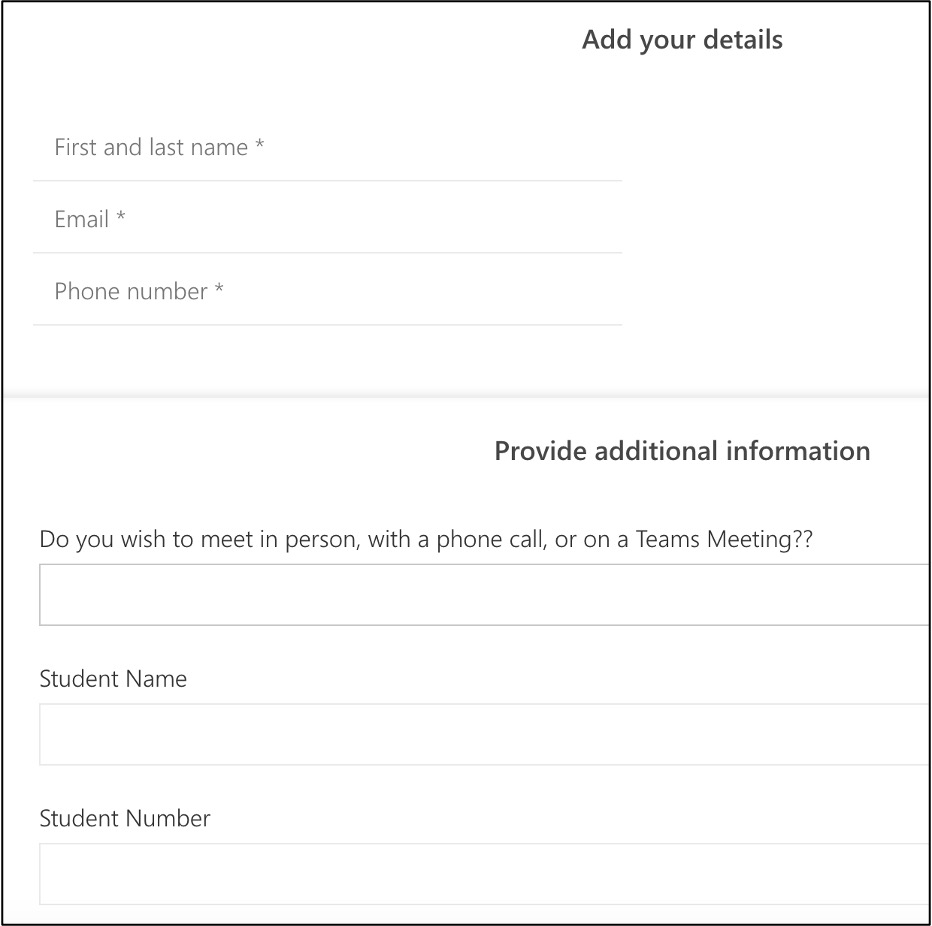
The basic questions for the system are the parent’s first and last name, email, and phone number.
We require the additional information to know which student and how we will meet with that person.
Pro Tip: Teachers have repetitive meetings on their Outlook calendars. If there is anything on the day and time on their calendars, then parents can’t book them. The simple solution is to remind teachers to remove all calendar commitments ONLY for that day and time.
At a faculty meeting the week before the Bookings, I show teachers how to access their Outlook calendar (yes, smh, this was a question at a faculty meeting) and how to open each Booking to see the student’s name and the method of the meeting. And, YES, I do print them out for a couple of teachers because that’s what they need.
The teachers need to expand the calendar description to see all of the fields.

We’ve tried various methods before but the tie with the teachers’ calendars makes this a very workable product. Try it out!
Pro Tip: I can’t delete old Booking pages – the county administrator will have to do that which is annoying.
 Tickling Tech